Open In
Open In is one menu on a trip briefing. It sends that trip into other tools so the same route can open in Aviation Weather, Windy, Kneeboard Pro, an EFB, or a PDF export.
What Open In does
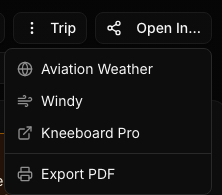
On the briefing screen, the Open In button (Share icon) opens a menu. On small screens the button label is Open. Each row hands the current trip to a different tool. Open In is available on every plan: Free, Casual, Pro, Pro Plus, and Enterprise. There is no separate upgrade gate for these links.
- Aviation Weather: opens aviationweather.gov GFA with the trip as a flight path.
- Windy: opens the trip route in Windy's distance and planning tool.
- Kneeboard Pro: one example of a partner app; opens with the trip encoded in the link when both origin and destination are set.
- EFB route link (menu label ForeFlight, iPhone and iPad only): opens a ForeFlight Maps search deep link for the route when the trip has an origin or destination. Hidden on desktop and Android browsers.
- Export PDF: builds a PDF of the briefing. Shown when viewing your own briefing, not a shared view.
Aviation Weather
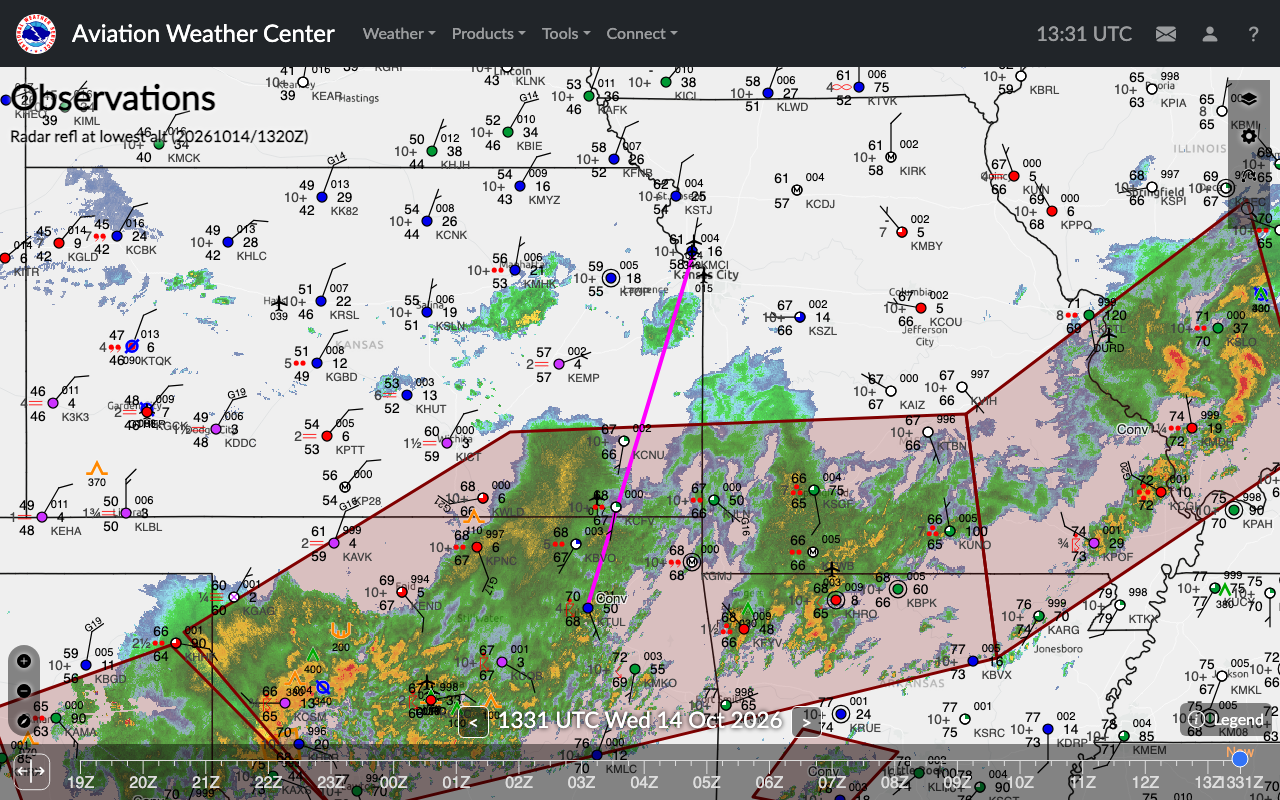
Menu label: Aviation Weather. PlaneWX builds a GFA permalink to aviationweather.gov with the Observations tab selected, the map centered on the route, the flight-path layer on, and fltpathpath set to the departure, enroute fixes, and destination (airways stripped). When the link opens, PlaneWX also copies that route string to the clipboard. Cruise altitude and departure time are not in the GFA link; those stay inside GFA after it opens.
- 1Open a trip briefing in PlaneWX.
- 2In the briefing toolbar, choose Open In (on small screens the button label is Open).
- 3Choose Aviation Weather.
- 4aviationweather.gov opens Graphical Forecasts for Aviation (GFA) on the Observations tab with the trip route drawn as a flight path. PlaneWX also copies that route string to the clipboard.
Windy
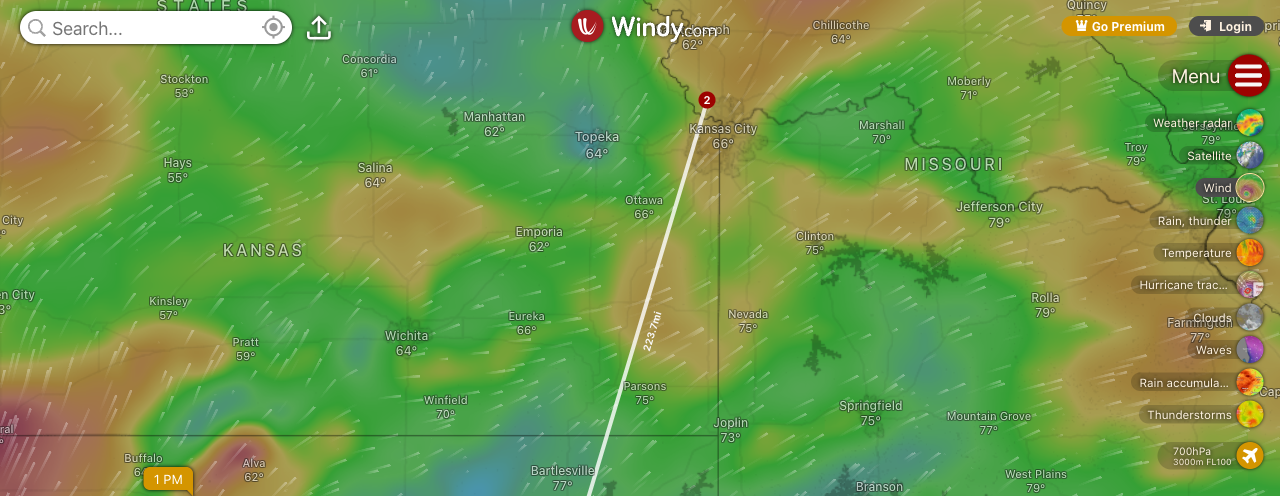
Menu label: Windy. PlaneWX opens Windy's distance and planning URL with the same resolved route points the briefing map draws (airway-expanded polyline when available). The link uses the trip flight rules (VFR or IFR), the wind overlay, cruise altitude mapped to the nearest Windy pressure level when set, and departure time in UTC when available. Opens in a new tab. The Windy row appears when a route URL can be built from map points or origin and destination station coordinates.
- 1Open a trip briefing in PlaneWX.
- 2In the briefing toolbar, choose Open In (on small screens the button label is Open).
- 3Choose Windy.
- 4Windy opens its distance and planning tool in a new tab with the same route points the briefing map draws, on the wind overlay.
Kneeboard Pro
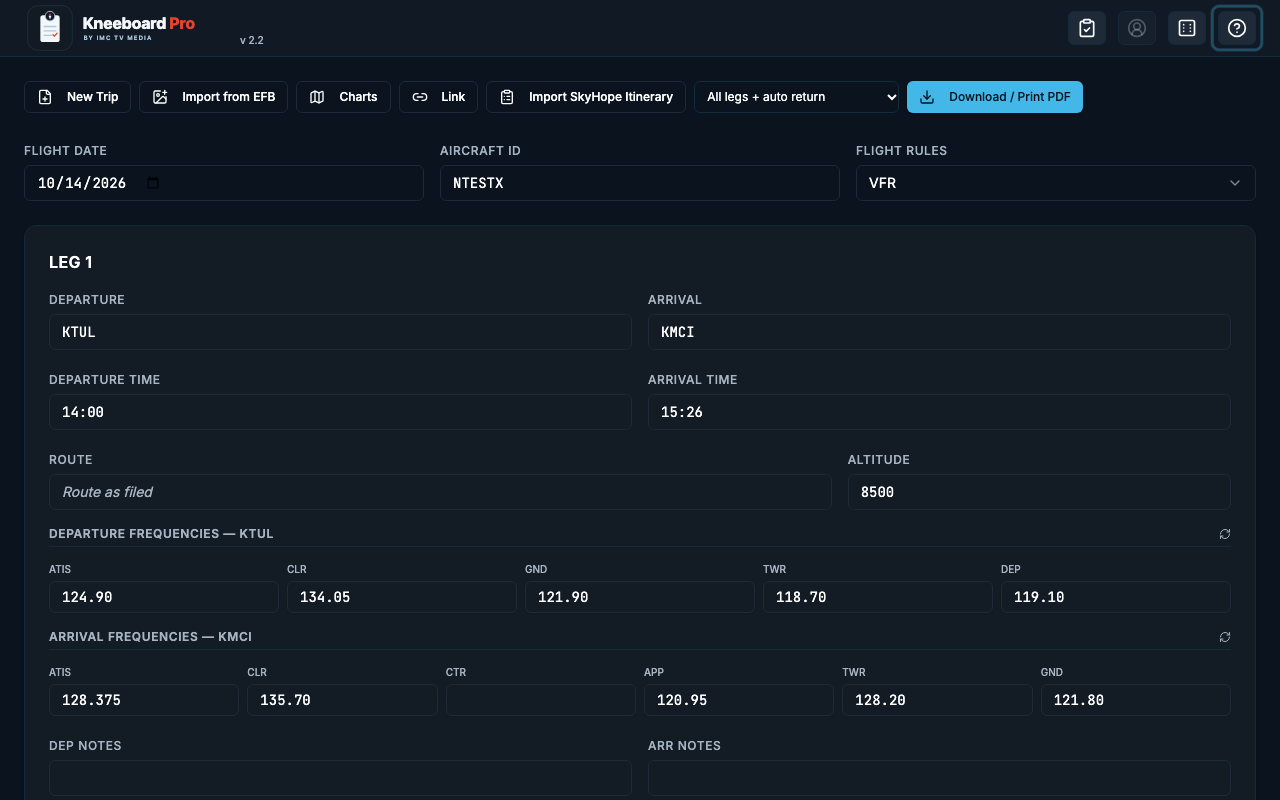
Menu label: Kneeboard Pro. This is one partner example in the Open In menu. PlaneWX builds an HTTPS link to Kneeboard Pro (kneeboardpro.imctvmedia.com) with a ?trip= parameter. That parameter carries a small JSON plan: departure and arrival airports, intermediate route or waypoints when present, date and times when available, cruise altitude and flight rules when set, and aircraft tail number when set. Both origin and destination must be set or the Kneeboard Pro row does not appear. PlaneWX opens the link in a new browser tab and does not check for a native app.
- 1Open a trip briefing in PlaneWX.
- 2In the briefing toolbar, choose Open In (on small screens the button label is Open).
- 3Choose Kneeboard Pro.
- 4Kneeboard Pro opens in a new browser tab with the trip pre-filled from the share link.
EFB route link
Menu label: ForeFlight. Shown only on iPhone and iPad when the trip has an origin or destination. PlaneWX opens a foreflightmobile://maps/search deep link. The search string is origin, enroute fixes or airways, destination, plus optional TAS (NNkts) and cruise altitude (NNnnft) when those values are on the trip. This row is hidden on desktop and Android browsers.
Export PDF
Menu label: Export PDF. Builds a PDF of the current briefing for the trip. The row appears when viewing your own briefing. It is hidden on shared briefing views.
Which plans include it
Open In is available on every plan: Free, Casual, Pro, Pro Plus, and Enterprise. The menu is not limited by subscription tier.