Flight Window Explorer
Beta · All PlansWhen your briefing shows a low WX Score, the Flight Window Explorer answers the most important question a pilot can ask: When can I go — and at what altitude?
The Problem with Static Briefings
A traditional weather briefing — and PlaneWX's standard briefing — describes a single snapshot: one departure time, one cruise altitude, one route. But real flying is dynamic. A low score at 7:00 AM doesn't mean 10:00 AM is equally bad. Severe icing at 9,000 ft doesn't mean 7,000 ft is equally dangerous.
Without the Flight Window Explorer, a 0% WX Score might make you cancel a flight that would have been perfectly safe two hours later — or at a different altitude where the icing layer doesn't exist.
The Flight Window Explorer solves this by showing you the hazard landscape across time and altitude, so you can find your window instead of just accepting an unfavorable briefing.
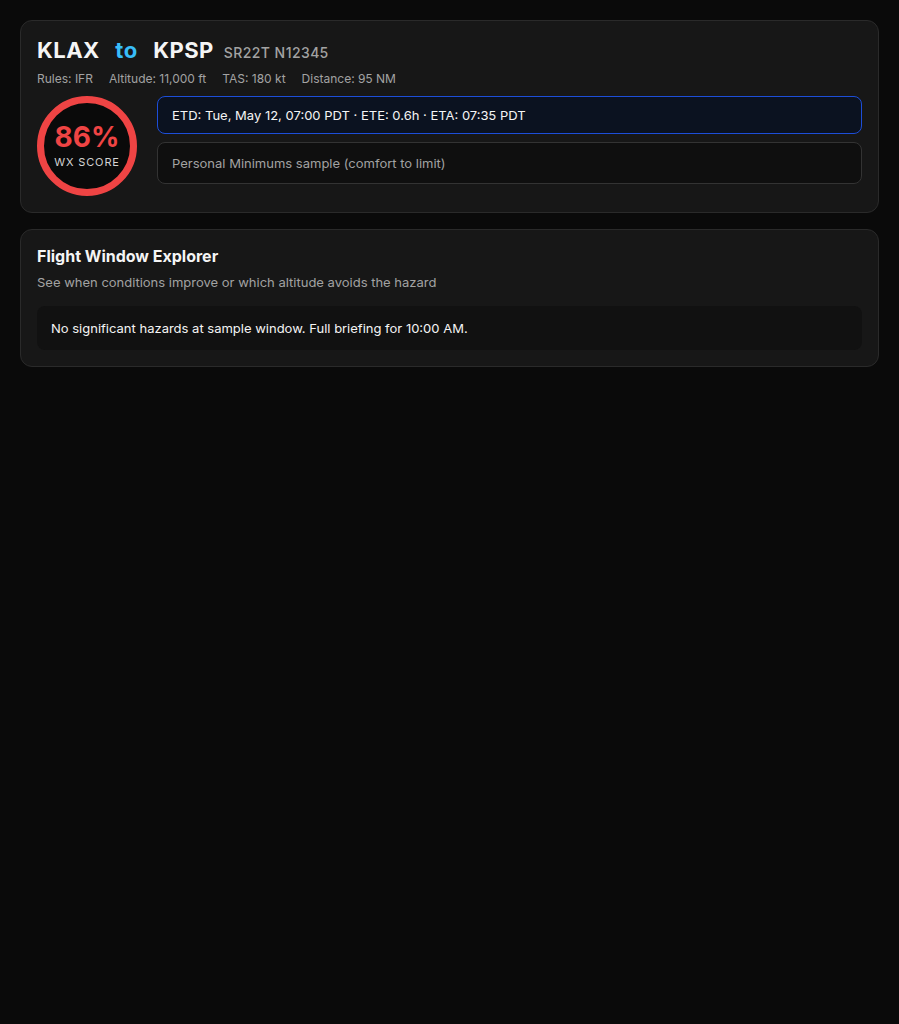
Sample Flight Window Explorer card: 86% WX Score for KLAX to KPSP, with a note that there are no significant hazards at the sample window and a full briefing for 10:00 AM.
How It Works
When PlaneWX generates your briefing, it simultaneously runs a fast, deterministic hazard check across 14 departure and altitude scenarios — using the same frozen weather data already fetched for your briefing. No extra API calls, no waiting.
When to fly
Seven departure-time slots: your planned time plus ±1h, ±2h, and ±3h. Each slot is color-coded green (Favorable), amber (Marginal), or red (Unfavorable) based on hard minimums and weather hazards.
- • Past slots are automatically hidden
- • Times shown in your departure airport's local time
- • Tap or hover any slot to see why
What Altitude
Seven altitude slots: your planned cruise plus ±2,000, ±4,000, and ±6,000 ft. Slots respect the hemispheric rule (odd/even thousands) and are capped at your aircraft's service ceiling.
- • Hard floor at 3,000 ft MSL
- • Slots near your service ceiling are flagged
- • Applies to both VFR and IFR flights
Reading the Slot Colors
Favorable
No hard minimums exceeded. No significant weather hazards (turbulence, icing, convective activity, or crosswind limits) detected for this slot.
Marginal
A weather hazard (icing, turbulence, convective activity, or crosswind) is present but no hard minimums are exceeded. Tap the slot to see the specific concern.
Unfavorable
A hard minimum is exceeded — ceiling below your hard limit, crosswind above your aircraft's max, or another aircraft/pilot exceedance. This slot is not suitable.
Unavailable
This slot is in the past (for departure time slots) or outside your aircraft's altitude envelope.
Comfort minimums vs. hard minimums: If your ceiling or visibility is between your comfort minimum and your hard minimum, the slot remains green — the condition is noted in the reason bar but doesn't turn the slot amber. Only actual safety hazards (icing, turbulence, convective activity, crosswind exceedances) turn a slot amber.
Important: Slot colors are deterministic estimates computed without a full AI analysis. The planned slot's color is always synchronized with your actual WX Score. For any alternate slot, generate a full briefing to get the precise WX Score.
The "Best" Badge
PlaneWX automatically identifies the best non-planned slot — the one with the lowest hazard penalty that outperforms your planned departure. A small green Best badge appears on that slot so you can spot it at a glance.
Once you generate a full briefing for a slot, the Best badge is replaced by a WX X% badge showing the actual AI-generated score for that slot — so you can compare real scores side by side without losing the deterministic context.
Generating a Full Briefing for a Slot
Tap any green or amber slot, then tap View Full Briefing. PlaneWX runs a complete AI briefing for that exact departure time or altitude — the same quality analysis as your original briefing, with a full WX Score, Gotchas, and all weather sections.
Select a slot
Tap any non-planned slot. A panel appears below showing the slot's primary reason and action buttons.
Tap "View Full Briefing"
A preview briefing is generated for that time or altitude. A banner appears at the top so you always know you're viewing a preview.
Decide what to do
If the preview briefing looks good, tap Update Trip to this time to commit it — no regeneration required. Or tap ← Back to planned briefing to return without changing anything.
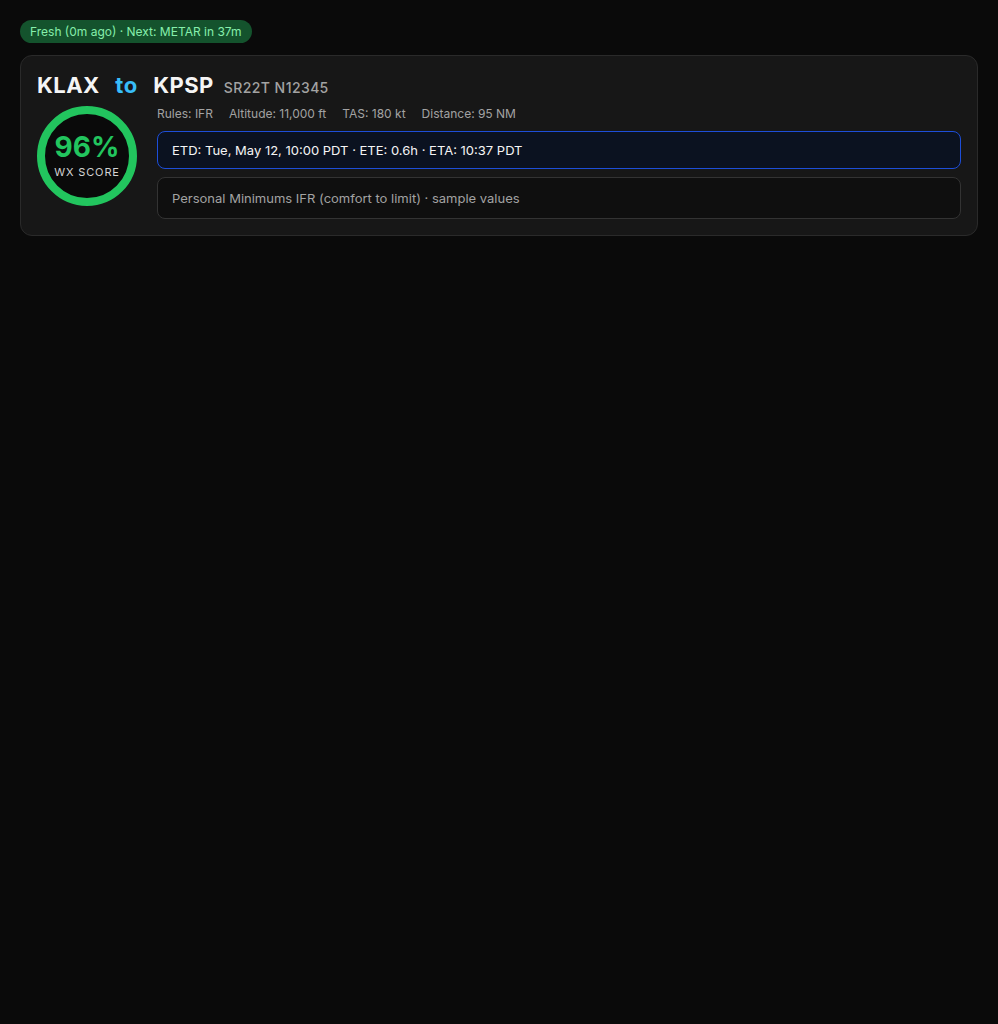
The preview briefing for 10:00 AM scores 96% — a dramatic improvement from the 0% planned departure. The top banner makes it clear this is a preview. Tapping "Update Trip to this time" commits the change instantly.
Updating Your Trip
Tapping Update Trip to this time (from either the preview banner or the slot action panel) does the following immediately — with no additional briefing generation:
- The preview briefing becomes your active trip briefing
- Your trip's departure time or cruise altitude is updated in the database
- The original briefing is archived in your briefing history with a change note (e.g., "Departure rescheduled: 07:00 to 10:00 via Flight Window Explorer (WX Score 96%)")
- Briefing history is visible under the History button in your briefing header
Availability & Timing
When does it appear?
The Flight Window Explorer appears immediately after your WX Score ring when your briefing scores below 75%. If conditions are great (75%+), the explorer is hidden — you don't need it. If your briefing was generated before the explorer was available on your plan, refresh it once to load the slot data.
12-hour preflight gate
Slot analysis is only computed when your departure is within 12 hours. TAFs and METARs become meaningfully reliable at that horizon — beyond 12 hours, the slot colors would be too speculative to be actionable. The card still appears in the UI, but will prompt you to refresh closer to departure.
Auto-refresh compatibility
Slot data is recomputed every time your briefing refreshes — automatically (via PlaneWX's milestone refresh schedule) or manually. You'll always see current slot colors when you open your briefing.
Plan availability
Flight Window Explorer (Beta) is available on every plan, including Free. Knowing when you can safely go is a safety answer, not a premium add-on.
Deterministic estimates, not full AI briefings
The slot colors in the Flight Window Explorer are computed by a fast, rule-based hazard check, not by the same AI that writes your full briefing. This means a slot might show green while a full briefing would catch a subtle hazard in a G-AIRMET, or show amber for a comfort-minimum breach that the AI would rate as 96%.
Always generate a full briefing for any slot you intend to fly. The slot colors are a navigation aid to help you find which window to investigate further — not a substitute for a complete weather briefing.