Multi-City Optimizer
ProFind the optimal order to visit multiple cities based on weather conditions across your travel window.
What Is It?
The Multi-City Optimizer is a Pro tool for pilots who need to visit several destinations within a flexible time window. Instead of guessing which order to fly, PlaneWX analyzes 7-day regional weather forecasts using Synoptic Intelligence™ and finds the sequence that gives you the best VFR conditions on each leg.
Think of it like a business trip planner that puts weather first. You tell PlaneWX where you need to go and when you're available, and it tells you which days to fly each leg for the safest conditions.
Getting Started
Access the Multi-City Optimizer from the ▾ dropdown next to the + New Trip button on your dashboard and choose Multi-City Optimizer.
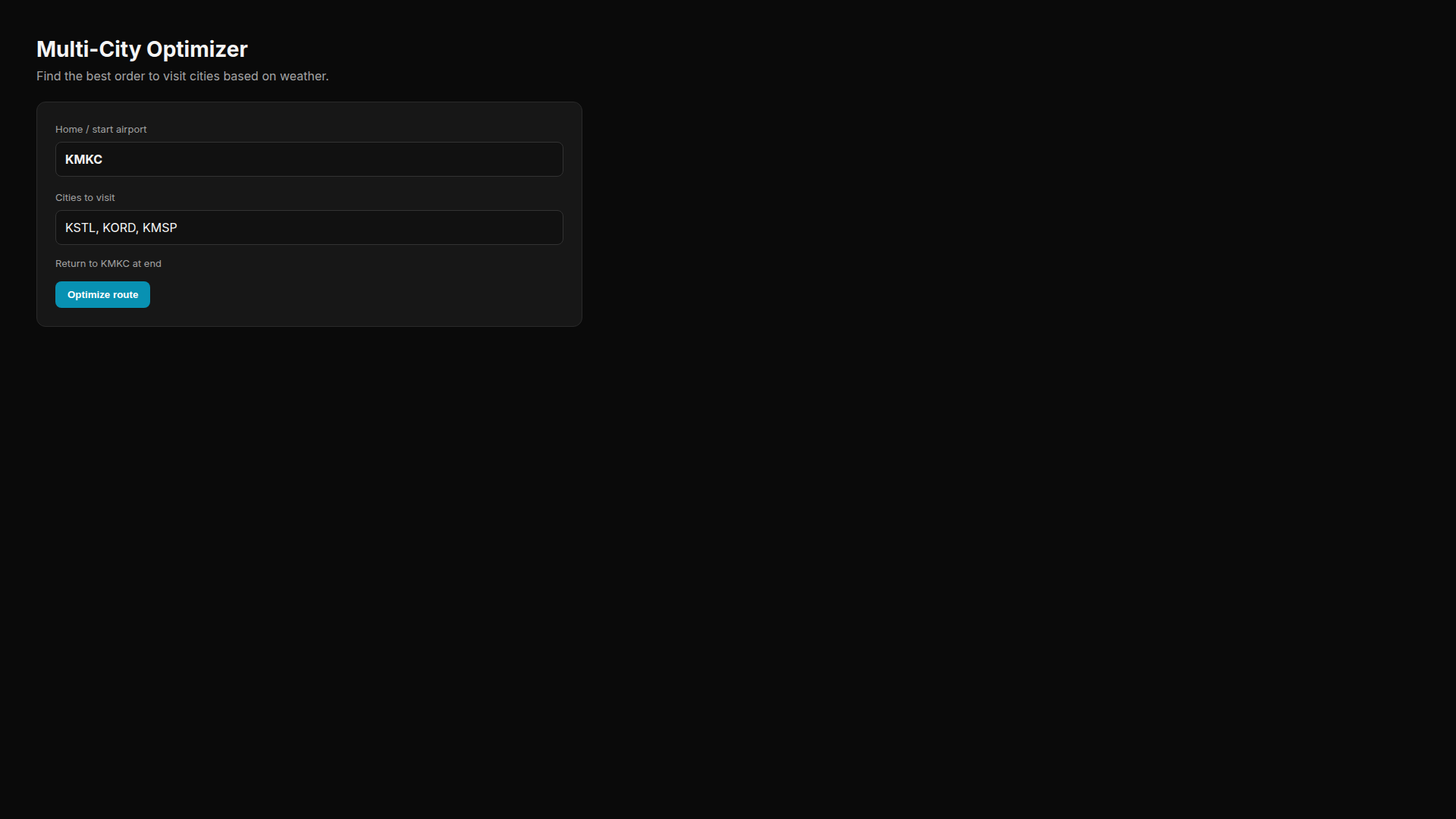
Step 1: Set Your Home Base
Home Base
This is where your trip starts (and ends, if you choose “Return Home”). Your profile's home airport is pre-filled, but you can change it.
Step 2: Add Destinations & Priorities
Add 2–6 destination airports. For each one, set a priority level that tells the optimizer how important the stop is:
Must Visit
This stop is non-negotiable. The optimizer will always include it, even if weather is challenging.
High Priority
Very important, but the optimizer has some flexibility with scheduling.
If Possible
Nice to visit, but can be dropped if weather doesn't cooperate or there aren't enough days.
Step 3: Set Your Travel Window
Start & End Dates
Define the window of days you're available to fly. The optimizer schedules one leg per day by default, so you need at least as many days as you have legs (destinations + return home).
Preferred Departure Time
Set your default local departure time (e.g., 09:00). You can adjust individual leg times later in the confirmation step.
Flights Per Day
Choose 1 or 2 flights per day. With 2 flights/day, the optimizer will try to schedule back-to-back legs when weather is favorable, with automatic ground-time spacing between them.
Return Home
Enable this to add a return leg back to your home base. The optimizer includes adjacent-day weather data for the return leg so you can easily shift it if the next day looks better.
Step 4: Select Aircraft & Settings
Choose the aircraft you'll be flying from your saved profiles. The optimizer uses your aircraft's capabilities (IFR certification, FIKI, weather radar, etc.) when generating briefings for each leg. You can also override TAS and cruise altitude for this trip.
Understanding Your Results
After you click Optimize, PlaneWX evaluates every possible sequence of destinations, scoring each leg based on weather conditions. This typically takes 7–10 seconds.
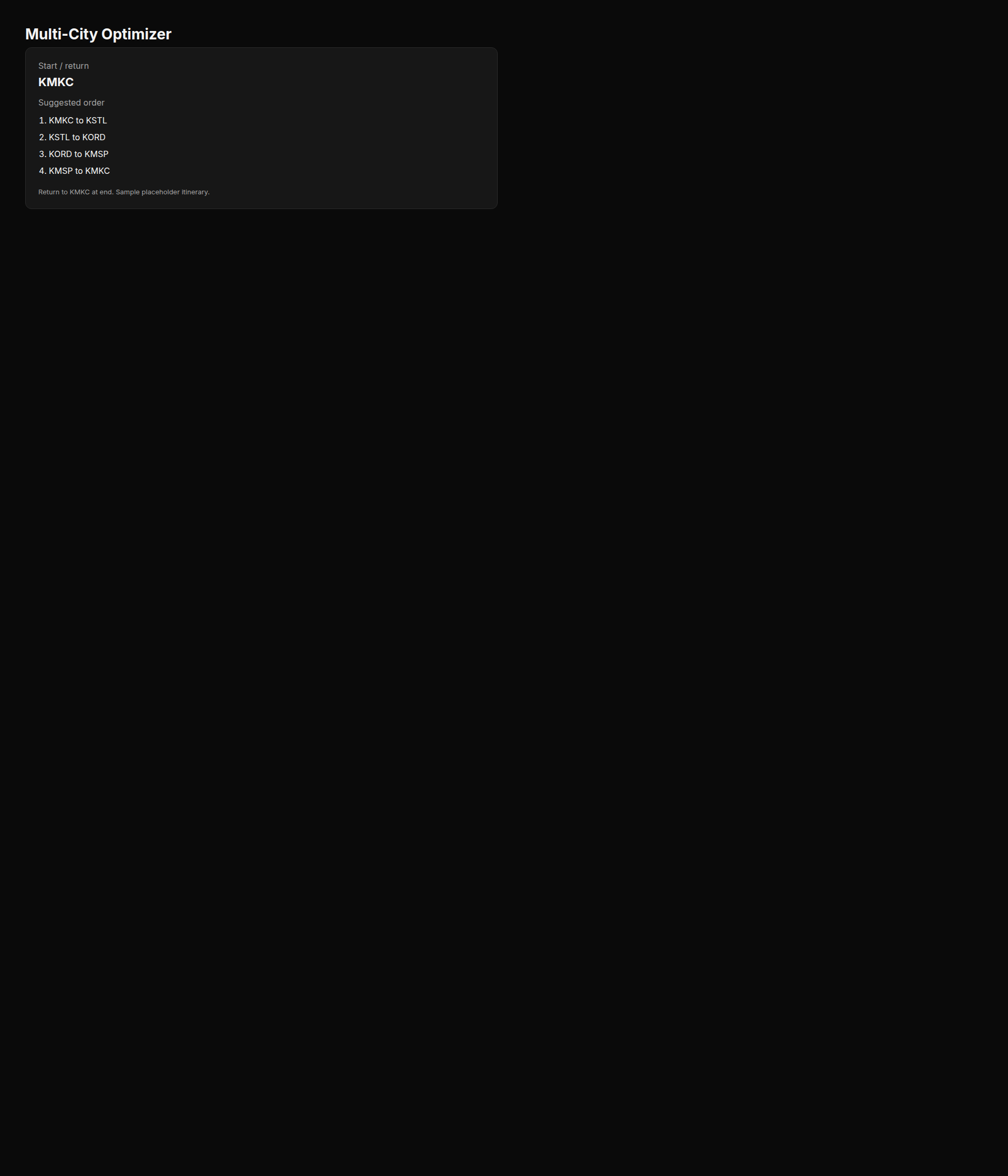
Recommended Sequence
The best overall order to visit your destinations. Each leg shows:
- • VFR Probability — percentage chance of flyable conditions
- • Weather Outlook — favorable (green), mixed (amber), or challenging (red)
- • Weather Synopsis — a brief summary of expected conditions
- • Hazards — icing, turbulence, convective activity
- • Trend — whether conditions are improving, stable, or deteriorating
Alternative Sequences
The optimizer also shows alternative orderings ranked by weather quality. If your top pick has a challenging leg, check the alternatives — a different order might avoid the worst weather day.
Dropped Destinations
If any “If Possible” destinations were removed due to poor weather or insufficient days, they'll be listed with the reason. You can adjust your travel window and re-optimize.
Adjusting Your Plan
Before creating trips, you can fine-tune the results:
- •Shift the return leg — if the day before or after has better VFR, one-click buttons let you move the return-home leg
- •Merge legs (fly same day) — combine two short legs onto the same day if you want to save a day
- •Switch sequences — select a different alternative if you prefer that order
Creating Trips from Results
When you're happy with a sequence, click “Create Trips”. A confirmation dialog lets you review and adjust departure times for each leg before committing. PlaneWX then:
- 1Creates all flights as a linked trip group
- 2Generates full AI weather briefings for every leg in parallel
- 3Redirects you to your dashboard where all trip cards appear grouped together
Each leg gets its own trip card with WX Score, weather monitoring, and auto-refresh — just like any other PlaneWX trip.
Example: Business Trip
Clark needs to visit job sites in Charlotte (KCLT), Nashville (KBNA), and Dallas (KDAL) this week, departing from his home base at KMGJ.
He enters all three destinations with “Must Visit” priority, sets a Monday–Friday travel window, and enables “Return Home”.
The optimizer finds that KMGJ → KBNA (Tue) → KCLT (Wed) → KDAL (Thu) → KMGJ (Fri) gives 78% average VFR, while the reverse order would mean flying into a cold front near Charlotte on Tuesday. Clark picks the recommended sequence and creates all four trips in one click.
Tips
- • Give yourself extra days in your travel window when possible — more flexibility means better weather days
- • Use “If Possible” for stops that can be skipped — the optimizer will include them only if weather and schedule allow
- • After creating trips, each leg gets independent weather monitoring and WX Score updates
- • You can merge two short legs onto the same day to save time if conditions are favorable
- • The optimizer works best with up to 6 destinations — it evaluates every possible ordering
- • Check back the day before each leg for the most up-to-date briefing