Understanding Your Briefing
How to read and interpret your PlaneWX weather briefing — three view modes, every section explained, and how to use Visual mode's live forecast imagery.
Three Ways to View Your Briefing
All three views contain the same weather data and analysis — the difference is how the information is presented. Switch between them using the toggle at the top of any briefing. Your preference is saved across sessions.
Quick
Phone default- • Compact summary — score, gotchas, key numbers
- • Best for a fast pre-flight check
- • Built-in default on phones (≤767px) with no saved preference
Enhanced
- • Color-coded data grids with gauge bars
- • VFR/MVFR/IFR/LIFR flight category indicators
- • Severity badges for turbulence and icing
- • Source attribution on every section
Visual
Desktop default- • Live NOAA/AWC forecast charts embedded per section
- • Official NOAA/AWC section imagery in Visual mode
- • Charts auto-matched to your departure time & altitude
- • SPC convective outlook, GTG turbulence, FIP icing, and more
How to switch: Tap Quick | Enhanced | Visual near the top of your briefing. Your selection persists across all sessions.
Built-in defaults: Desktop opens in Visual. Phones (≤767px wide) with no saved preference open in Quick.
Briefing Layout
Every briefing follows a consistent structure, from top to bottom:
WX Score & Flight Details
Your overall WX Score with Favorable (75 and up), Marginal (50 to 74), or Unfavorable (under 50) bands, plus route, aircraft, departure time, and data confidence badge. Favorable, Marginal, and Unfavorable name score bands only. GO or NO-GO is your call as PIC.
Gotchas
Top-priority weather concerns that need your attention before flying
Briefing Summary
A plain-English summary of overall conditions, en-route weather, and key considerations. When the WX Score includes a convective SIGMET or thunderstorm deduction, the Summary is required to name that hazard — it will not claim “no significant convective threat” while the score breakdown still shows one.
Convective Watch
Thunderstorm and convective threat assessment (only appears when convective activity is detected)
Weather Sections (5 sections)
Ceilings & Visibility, Turbulence, Icing, Winds Aloft, and AIRMETs/SIGMETs
Terminal Weather, Sources & Raw Data
METAR/TAF cards, weather product sources, and raw data for pilots who want the full picture
Section Status Colors
Each weather section is color-coded based on how conditions compare to your personal minimums and general aviation safety standards:
Conditions are well within your minimums. No concerns.
Conditions are close to your limits. Extra attention needed.
Conditions exceed your minimums. Carefully consider whether to fly.
Weather Sections Explained
Ceilings & Visibility
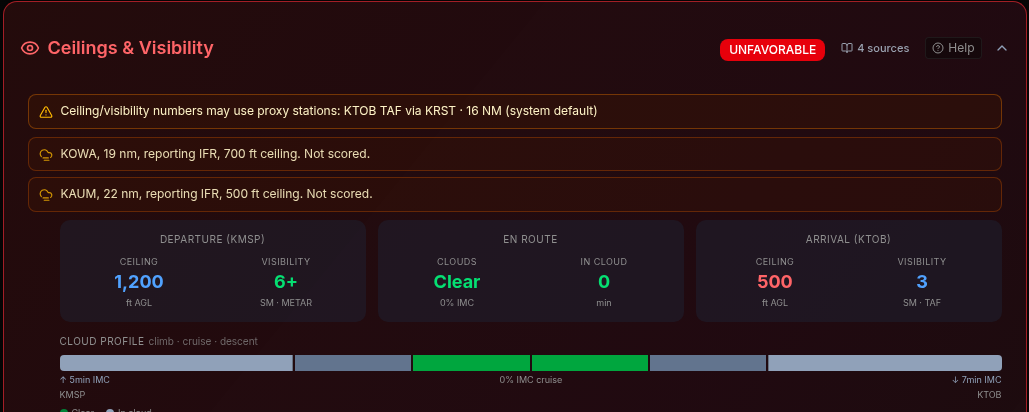
Shows cloud bases and visibility at your departure, arrival, and en-route. In Enhanced View, you'll see a visual grid with independent color-coding for ceiling and visibility values.
When you arrive within about 3 hours of the briefing and your destination has no TAF of its own (a proxy TAF from another airport doesn't count), or its own TAF doesn't show fog, mist, or IFR at your ETA, Ceilings & Visibility can list up to 2 airports within about 30 nm whose latest report (from the last 90 minutes) shows fog, mist under 3 SM, or IFR. Each line looks like “KMIE, 13 nm, reporting 1/4 SM fog. Not scored.” These lines never affect the WX Score. You decide how to use them for your GO / NO-GO call.
Flight Category Colors
“CLR” means clear skies (no ceiling) and “10+” means unrestricted visibility — both displayed in green. Values reflect the worst-case forecast from TAF periods covering your departure/arrival window. When wildfire smoke affects the corridor, VFR flights also score en-route estimated visibility against your personal minimums — see Wildfire Smoke.
Convective Watch
ConditionalThis section only appears when thunderstorm or convective activity is detected along your route. It combines data from multiple numerical weather models (regional hi-res plus GFS and ECMWF, chosen by route geography) and the Weather Prediction Center (WPC) to assess the threat level.
Threat levels:
- • Isolated — Scattered, pop-up cells possible; avoidance usually straightforward
- • Scattered — Multiple cells or lines; route deviations likely needed
- • Widespread — Large-area convective activity; significant rerouting or delay recommended
The Convective Watch uses CAPE, K-Index, and Lifted Index from model soundings along your route. See the Hazardous Weather page for detailed explanations of these indices.
Turbulence
Multi-model turbulence analysis using wind shear and Richardson number calculations from the models queried for your route. In Enhanced View, you'll see a grid showing severity during climb, cruise, and descent phases.
Icing
Icing assessment based on freezing level, relative humidity, and temperature profiles from multiple models. In Enhanced View, the grid highlights the freezing level, shows severity by flight phase, and indicates your FIKI equipment status.
Winds Aloft
Route-averaged wind analysis showing headwind/tailwind component, crosswind at departure and arrival, and the overall impact on your flight time. In Enhanced View, the grid shows wind direction, speed, headwind/tailwind component, and crosswind at your airports.
AIRMETs & SIGMETs
Active weather advisories that intersect your route corridor and altitude. PlaneWX uses polygon-based intersection testing for G-AIRMETs and filters by altitude to show only advisories relevant to your flight.
Open in aviationweather.gov
On every briefing view (Quick, Enhanced, and Visual), the top toolbar includes an Open In… button. Choose Aviation Weather to open the FAA Aviation Weather Center Graphical Forecasts for Aviation (GFA) map with your route drawn as a flight path.
Who can use it: Available on every plan (Free, Casual, Pro, and Pro Plus).
What you get: GFA opens on the Observations tab, centered on your route, with the flight-path layer on so you can compare radar, METARs, and other products along the same line you briefed in PlaneWX.
Clipboard: PlaneWX also copies the route string (airports and fixes) to your clipboard when you open the link, in case you want to paste it into GFA's own flight path tool.
What the link includes
- Route: Departure and destination as ICAO (3-letter US ids get a K prefix, e.g. ROG becomes KROG), plus enroute fixes and waypoints from your trip.
- Airways stripped: Designators such as V14, J80, or Q13 are removed because GFA does not resolve airway names, only airports and fixes.
- Map view: Center lat/lon and zoom fitted to your route polyline (or origin/destination METAR stations if the polyline is missing).
- Not included: Cruise altitude, flight level, departure time, or forecast valid time. Pick time and altitude inside GFA after it opens.
Example
Trip KSAT to KGEU with waypoints FST, TXSAS, SWIMS, and OLIIN. Map centered near 31.5°N 105.4°W at zoom 6.
https://aviationweather.gov/gfa/?tab=obs¢er=31.500%2C-105.400&zoom=6&mapLayers=basicMap%2Cfltpath&fltpathpath=KSAT+FST+TXSAS+SWIMS+OLIIN+KGEU#obs
Source Attribution
In Enhanced View, every weather section includes a “Derived from” line at the bottom, showing exactly which data sources were used for that section's analysis. This transparency helps you understand the basis of each assessment.
Example: “Derived from multi-model wind-shear and Richardson number analysis at FL115 • Corroborated by AIRMETs Tango and PIREPs”
Some sections also have a Sources button that opens a detailed popover with the raw data products used, model details, and confidence information.
When an NWS watch, warning, or advisory from PlaneWX's storm list touches your departure, destination, or route during the flight window, the briefing shows a banner titled Weather alert near your route. It sits above the WX Score on the briefing page (full briefing and simple view). It does not appear on trip cards or in emails.
What it shows
- A short lead line for the kind of hazard (wind, thunderstorms, winter, tropical, or marine)
- The alert name (for example High Wind Warning), where it applies, and when it is in effect in local day-part words
- Each visible alert line ends with its own issuing office
- The Source line lists every unique office from all matched alerts, including ones not shown in the list
- Up to three alerts in the list. When more alerts match, an extra line reads “Plus 2 more from NWS Elko NV” when the hidden alerts add new offices, and otherwise “Plus N more alerts along the route.”
- If an alert has no sender, or only a bare “NWS”, it shows “NWS office not given” and never borrows another alert's office
- When the alerts were fetched: the banner shows “Alerts as of …”. If the latest check did not complete and older alerts are shown, the line reads “Latest storm alert check didn't complete. Showing alerts as of …”
Which alerts count
PlaneWX matches exact NWS CAP event names that can affect flight safety: high wind and extreme wind, dust and blowing dust, flood and flash flood (including Flood Watch), severe thunderstorm and tornado, winter storm / blizzard / ice storm / snow squall / lake-effect snow, winter weather and freezing rain advisories, dense fog and freezing fog, dense smoke, ashfall, extreme cold, hurricane / typhoon / tropical storm, storm surge when it covers your route, and marine gale / storm / hurricane-force wind products. Matching watches, warnings, and advisories on that list are included. Coastal Flood and Lakeshore Flood products are not included (tidal or lakeshore inundation, not flight weather). Cancelled messages and non-Actual statuses are ignored. Expired alerts are ignored.
Matching uses your departure, destination, and points along the route (about every 25 NM on short routes, spaced farther on long ones, up to 12 interior samples). Zone-only NWS products (no polygon, for example many Flood Watches) match when an NWS point query for a route sample returns them. Alerts that include a polygon are also checked against a shared 20 NM corridor around the route line, so small warning footprints between sample points still show, and cells about 30 NM offline do not. Time matching uses the alert onset/ends window (not message expires) with one hour before departure through one hour after arrival.
Warnings use the strongest banner styling, watches use a calmer amber style, and advisories use the lightest style. The banner text is specific to the hazard kind (flood, dust, wind, and so on) and does not change the WX Score.
Shown, not scored. The banner is informational only. It does not change the WX Score, score breakdown, or Favorable / Marginal / Unfavorable status. Recheck closer to departure if conditions are changing.
Related Help Pages
Visual Mode
Live NOAA/AWC imagery in Visual mode
WX Score Explained
How the score is calculated and what deductions mean
Forecast guidance age
When older MOS runs change how the WX Score uses long-range guidance
Flight Window Explorer
Find the best time and altitude when your planned score is low
Hazardous Weather
Convective indices, thunderstorm analysis, and icing details
Multi-Model Icing Analysis
Cloud-top veto, phase peaks, and ForeFlight VCS cross-check
Convective Watch Scoring
Time-aware SIGMETs and honest convective summaries
Diversion Spacing
Gap spikes, corridor scan, and route map layers for divert options