Visual Mode
Live NOAA/AWC forecast imagery shown directly in each section of your briefing — matched to your departure window and cruise altitude.
What Is Visual Mode?
Visual mode is one of three ways to view your PlaneWX briefing, alongside Quick and Enhanced. Where other modes present text analysis, Visual mode adds official NOAA/AWC forecast charts — ceilings, turbulence, icing, and convective outlook, shown inline under the relevant weather section.
Every image is automatically selected to match your flight's departure time and cruise altitude. You see the chart that's most relevant to your window, not just the current-conditions map.
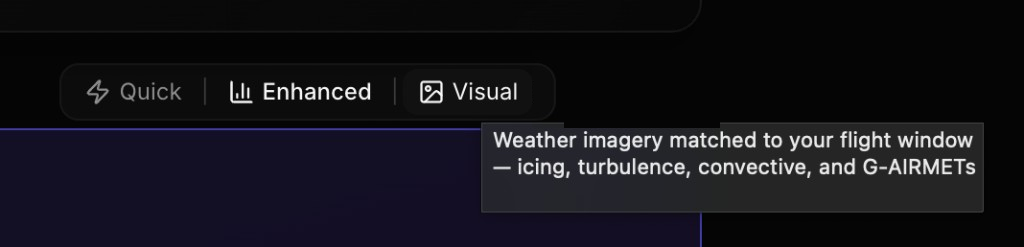
How to activate: Open any briefing and tap Visual in the view toggle bar at the top of the briefing (alongside Quick | Enhanced). Visual is the desktop default. Your preference is saved for future sessions.
The Three Briefing Views
Quick
Phone defaultCompact at-a-glance summary — score, gotchas, and key numbers only. Built-in default on phones (≤767px) with no saved preference.
Enhanced
Color-coded data grids, gauge bars, and source attribution. The full analytical view without chart imagery.
Visual
Desktop defaultOfficial NOAA/AWC forecast charts shown section-by-section. Matched to your departure window and altitude.
What You'll See in Each Section
Visual mode adds imagery to six briefing sections. Multiple charts per section use left/right carousel arrows to flip through them.
The Pattern
- WPC Prog Chart: fronts and surface pressure for the departure window. We show the published chart whose valid time is nearest your departure (in UTC), taking the earlier one on an exact tie. Days 3 to 7 use the 12Z-only WPC Day N charts, which show fronts and isobars only with no precipitation shading, and the caption says so. Nearer leads use AWC prog frames with an F-hour. For flights departing within 6 hours, this is replaced by the WPC Surface Analysis (current fronts are more accurate than a near term forecast chart).
- Prog chart caption: for about the next two days the chart comes from aviationweather.gov, which rewrites its files every three hours and not every file each time. PlaneWX checks when each file was last written. When that check is current, the caption shows the valid day and hour, for example Fri 18Z · F24. In the first minutes after a rewrite, or when the check is missing or out of date, the hour is hidden: the caption reads Fri Oct 2 · hour on chart · F24 when the date is certain, or Valid time on chart · F24 when it is not. The valid time printed on the chart itself is always correct.
- WPC Surface Analysis — always present as the second slide (or the only slide for near-term departures), showing real-time fronts and pressure systems.
Ceilings & Visibility
- AWC Aviation Clouds Forecast (GFA) — the FAA's official Graphical Forecasts for Aviation cloud coverage chart, time-matched to your departure.
- G-AIRMET Sierra — IFR conditions and mountain obscuration advisory, time-stepped to the nearest valid period.
Available within 18 hours of departure. For flights farther out, a horizon notice is shown.
Convective
- SPC Categorical Outlook — the Storm Prediction Center's Day 1, 2, or 3 convective outlook (Marginal / Slight / Enhanced / Moderate / High risk). Auto-selected based on how many days until departure.
Available within 72 hours of departure.
Turbulence
- GTG Total Turbulence — AWC's Graphical Turbulence Guidance "total" product at your cruise altitude (snapped to the nearest available pressure level). Covers clear-air, mountain wave, and convective turbulence.
- G-AIRMET Tango-H / Tango-L — moderate turbulence advisories above and below FL180, time-stepped to your window.
GTG available within 18 hours. G-AIRMET within 12 hours. Horizon notices appear when products aren't yet available for your window.
Icing
- FIP / CIP — Forecast Icing Potential first when departure is more than an hour out; Current Icing Product first inside that hour. Both are cruise-altitude probability charts, snapped to the nearest published level.
- Max icing w/SLD — AWC column-max severity plus supercooled large droplets (Level=MAX, Field=SEVSLD), matched to the same forecast hour, before the official chart.
Available within 18 hours of departure.
AIRMETs & SIGMETs
- G-AIRMET Sierra — IFR conditions and mountain obscuration, time-matched to your departure window.
Available within 12 hours of departure.
Time & Altitude Matching
PlaneWX doesn't just pull the most recent chart — it selects the chart that's most relevant to your specific flight.
Time Matching
Each product has a set of valid forecast hours (e.g., +3h, +6h, +12h). PlaneWX computes the hours from the product's model cycle to your departure and picks the forecast hour closest to your window — so the map you see reflects conditions during your flight, not hours before or after.
Altitude Matching
Icing and turbulence charts are available at discrete pressure levels. PlaneWX snaps your cruise altitude to the nearest available level and shows the chart for that level.
Chart labels: Labels are computed live when you view the briefing. A Day N chart reads like Mon Oct 5 12Z · fronts/isobars only. When the hour is shown on a short-range chart, it reads like Fri 12Z · F24, where the F-hour is the AWC frame. See the Prog chart caption item above for when the hour is hidden.
Imagery Freshness Gate
Visual mode shows live imagery fetched directly from NOAA/AWC servers. If you open a briefing that was generated more than 6 hours ago, imagery is hidden and replaced with a muted line: Imagery hidden: briefing is over 6 hours old. On your own briefings, an inline Refresh briefing link appears after that line so you can regenerate and restore imagery. Mentor and shared views show the note only.
Why 6 hours? NOAA/AWC updates most aviation forecast products every 1 to 6 hours. A chart shown against a 7-hour-old briefing could reflect a model cycle that has since been superseded, showing conditions that no longer match current forecasts. The freshness gate ensures you only see charts that are consistent with your briefing's analysis.
Fix: On your own briefing, tap Refresh briefing in the muted line (or the main Refresh control) to generate a fresh briefing. Imagery re-enables once the new briefing is under 6 hours old.
Forecast Horizon Notices
Most aviation forecast imagery has a limited lookahead window. When your departure is farther out than a product supports, Visual mode shows a small notice in that section rather than displaying an outdated or irrelevant chart.
WPC Surface Analysis is always available regardless of departure time, since they reflect current model data you can step forward manually.
Image Sources
Day 3 to 7 WPC Prog Charts come from the WPC medium-range archive (fronts and isobars only). Nearer-lead prog frames come from AWC with an F-hour.
All imagery is fetched directly from the original government servers. PlaneWX does not modify or re-host any charts. Click any chart to open it on its source website.
Related Help Pages
Understanding Your Briefing
All three view modes and every briefing section explained
Hazardous Weather
How PlaneWX interprets turbulence, icing, and convective data
Turbulence Analysis
GTG, PIREPs, and how turbulence severity is assessed
Icing Analysis
CIP/FIP icing products and how they're used in your score